 EN
 DE
 ES
 HU
 IT
 PL
 PT-BR
 RU
 TR
 UA
 ZH
Settings
Turn the sound up, adjust the picture and more in the settings. In the main menu, click the gear button at the top right. The window has the tabs GAME, GRAPHICS, CONTROLS, SOUND and LANGUAGE.
GAME
Here you can switch on and off:
- Damage Numbers
- Camera shake
- Low Health
- Damage direction
- Reticle
- Laser sight
- Turn off battle notifications that pop in the middle of the screen: Multi-kill, gold box and domination notifications then appear only in the top right corner.
Low Health and Damage direction are off at the quality level Minimum.
GRAPHICS
In the graphics settings you can:
- set the Window Mode: Windowed or Fullscreen;
- choose the Screen Resolution;
- change the Quality Level: Minimum, Low, Medium, High, Maximum, Ultra. It decides how much the game asks of your computer. If your computer is likely to struggle with the chosen level, a red warning says so: “The applying of chosen settings can negatively affect perfomance”;
- change the Saturation Level: Very Low, Low, Normal;
- limit the frame rate (Frame Rate Limit): Unlimited, 30, 60, 90, 120, 144, 165, 240. While vertical synchronisation is on, the limit cannot be changed.
Tick Advanced Settings to set the parts of a quality level one by one:
- Texture Quality: how sharp the textures of the surroundings are;
- Shadow Quality: the shadows tanks cast and that fall on them;
- Particles Quality: how detailed shots, explosions and other effects are;
- Antialiasing: smooths the jagged edges of objects;
- Anisotropic Quality: keeps textures sharp on surfaces seen at a flat angle;
- Vegetation Quality: trees and bushes in the distance and their shadows;
- Grass Quality: how dense the grass is, how far it is drawn and whether it casts shadows;
- Half Resolution: draws the battle at a lower resolution while the interface stays sharp, for weak graphics cards;
- Ambient Occlusion, Bloom, Chromatic Aberration, Grain and Vignette: the picture's effects, explained below;
- Vertical Synchronization: Every Frame, Every Second Frame, Off;
- Amount of Shells: with Default every shell disappears after 5 seconds, otherwise up to 30, 60, 90, 120, 150 shells stay on the ground.
Some settings take effect after you apply them, and the game then restarts.
The picture's effects
Ambient Occlusion shades corners and gaps where little light reaches, which makes the picture more realistic. It costs a lot of performance.
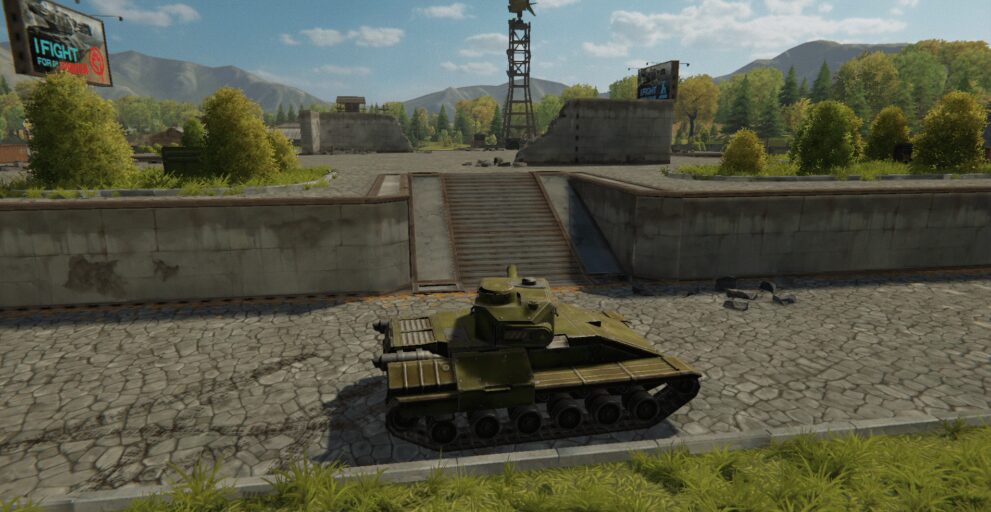
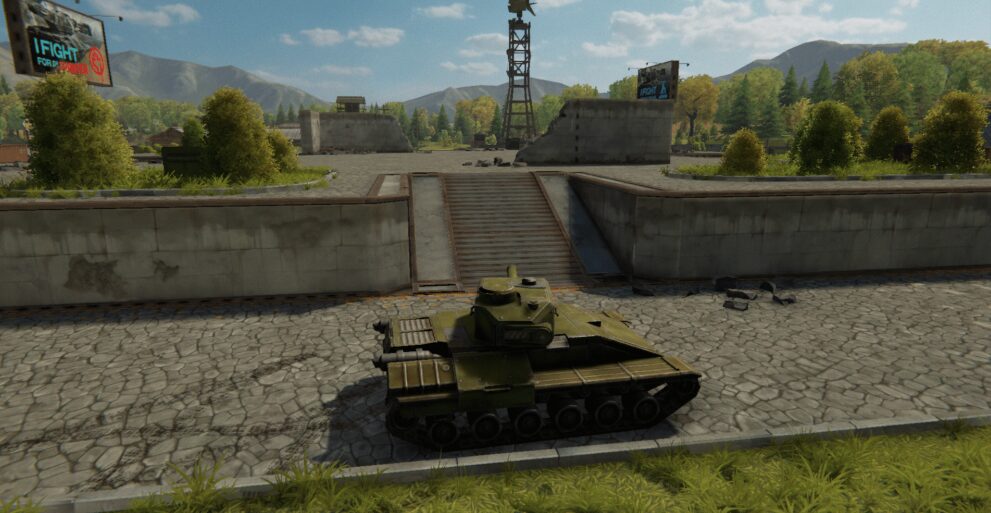
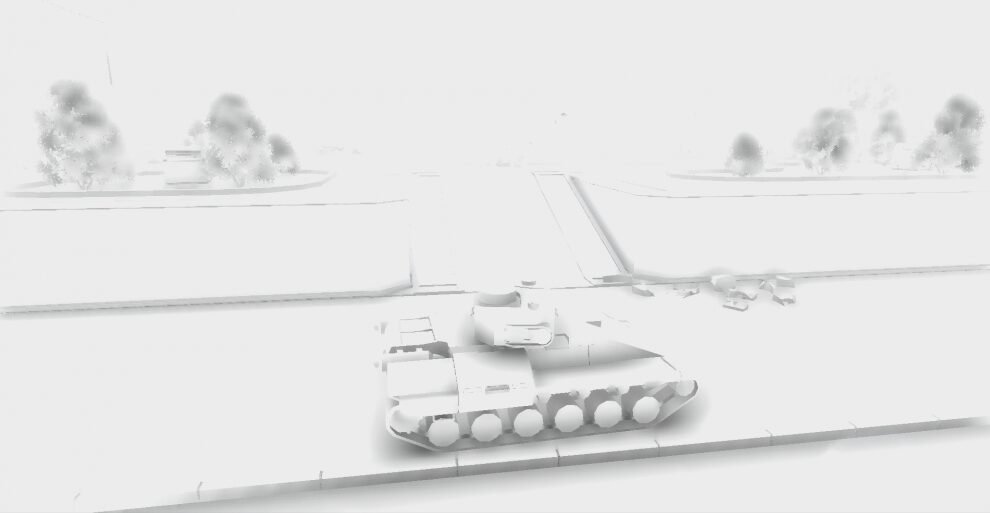
Off, on, the effect alone
Bloom lets bright parts of the scene glow. It costs some performance.
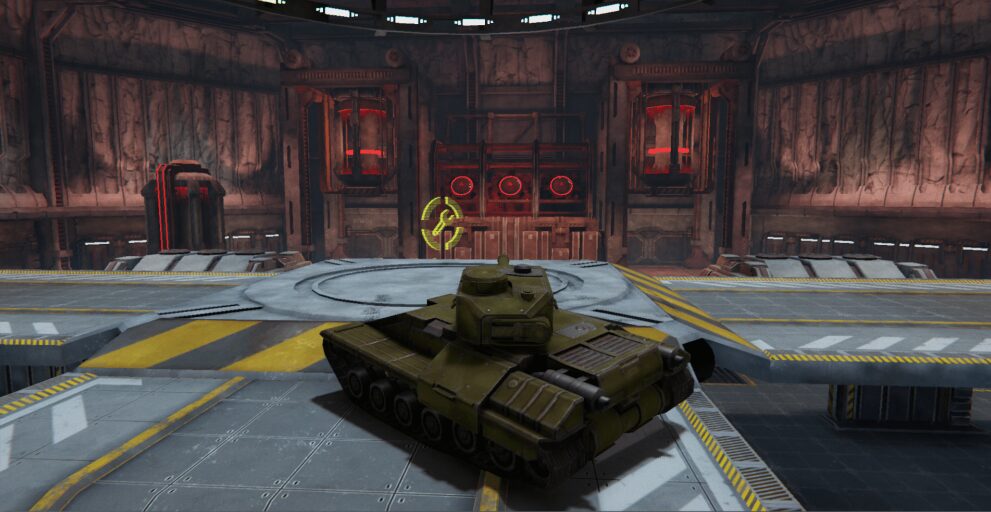
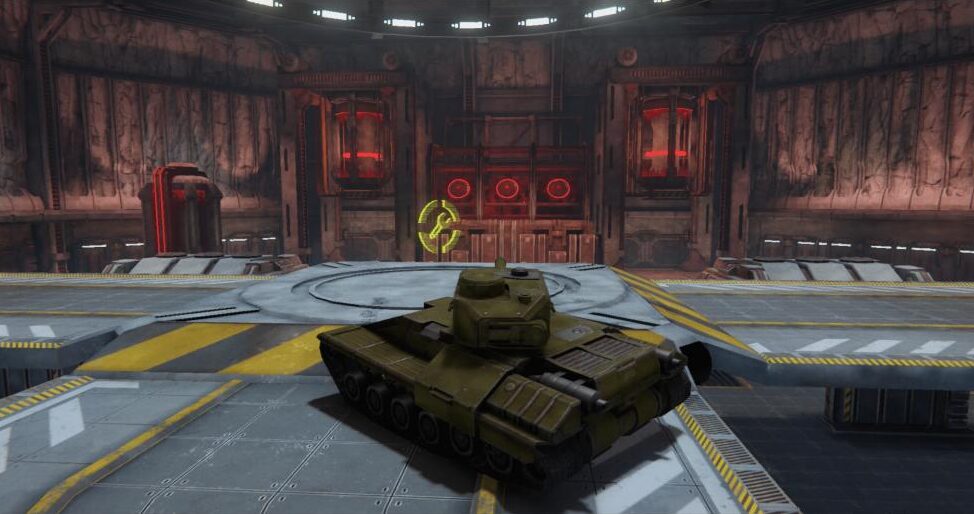
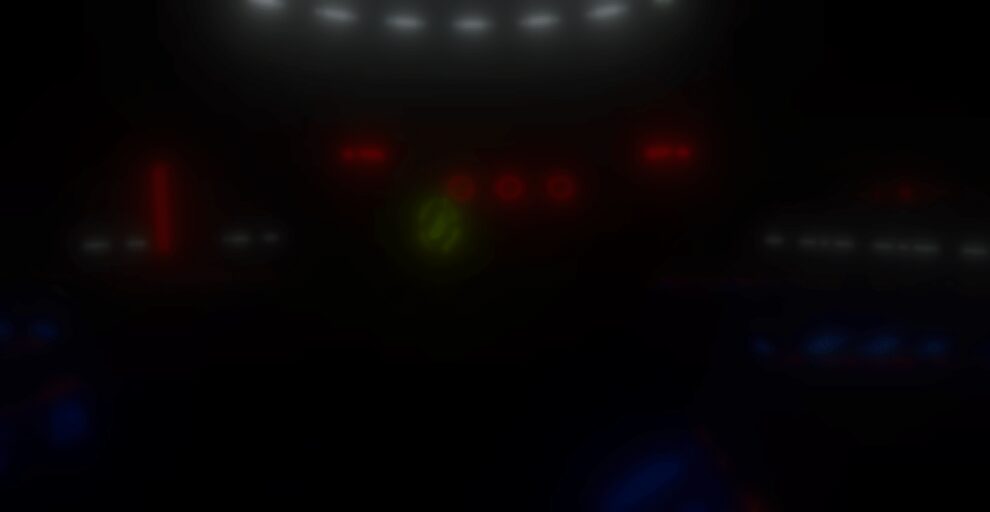
Off, on, the effect alone
Chromatic Aberration imitates the colour fringes of a camera lens at the edges of the picture. It costs little performance.
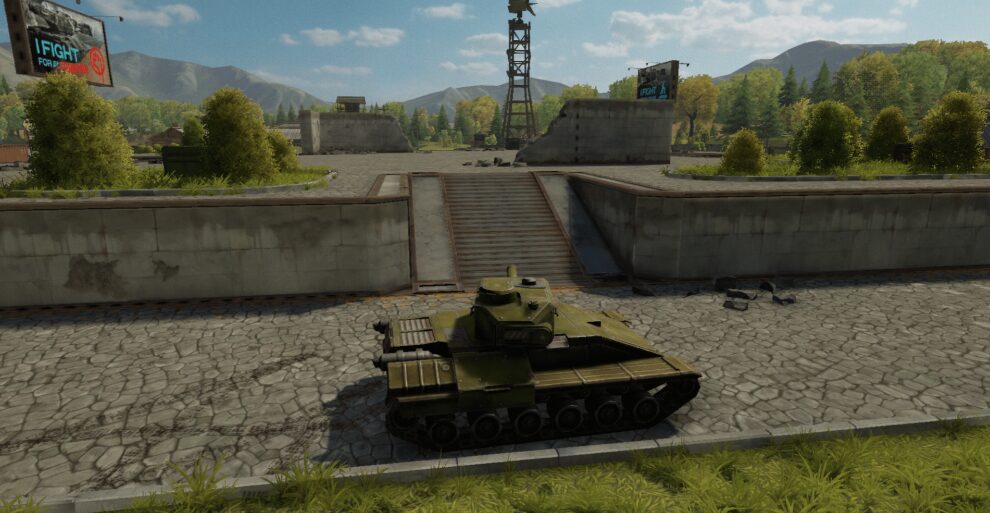
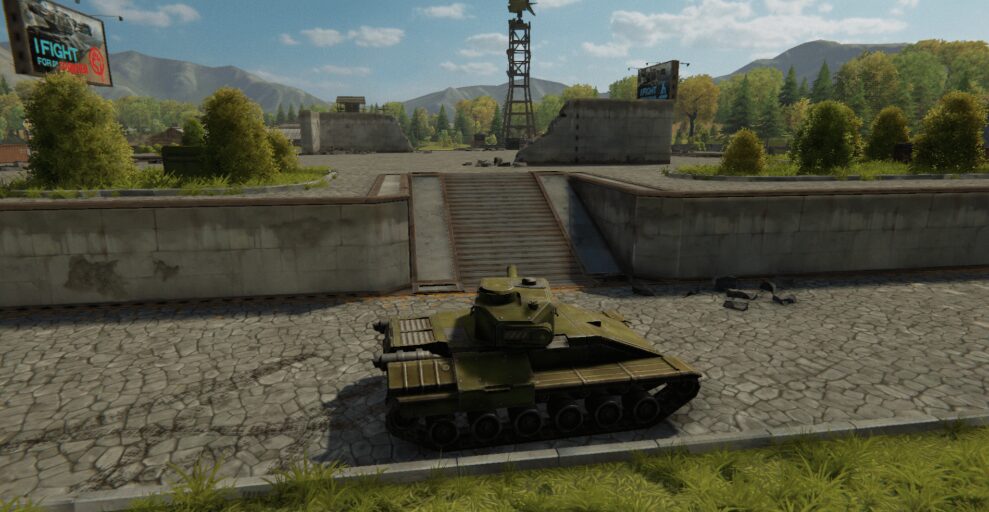
Off, on
Grain lays a fine noise over the picture, like an old film in the cinema. It costs little performance.
Vignette darkens the picture towards the edges of the screen. It costs little performance.
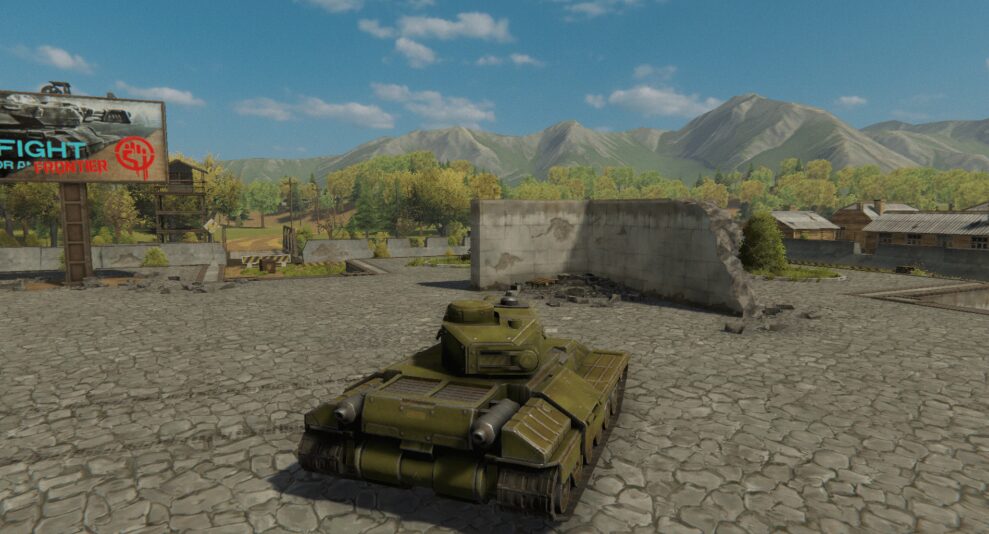
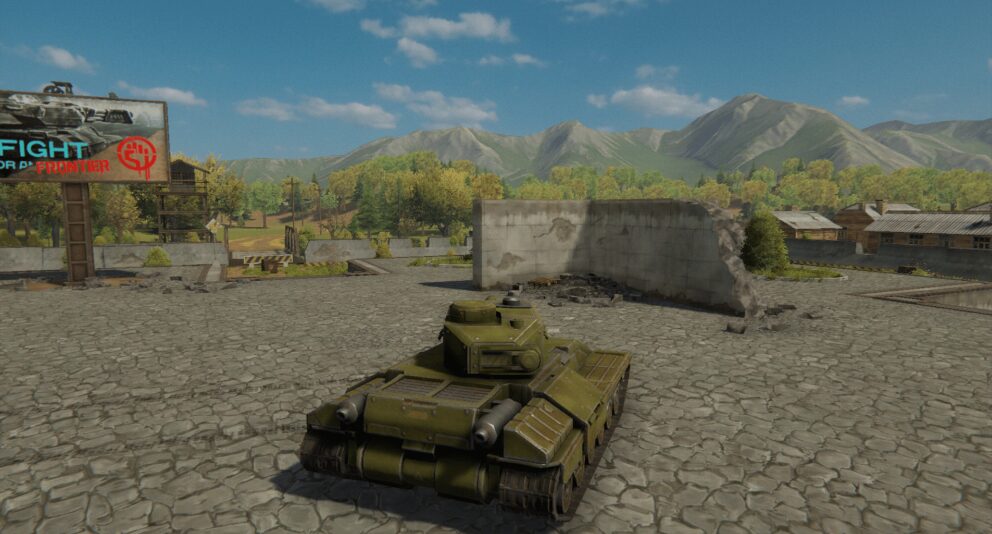
Off, on
Anisotropic Quality keeps textures sharp on surfaces seen at a flat angle, such as the ground in front of you.
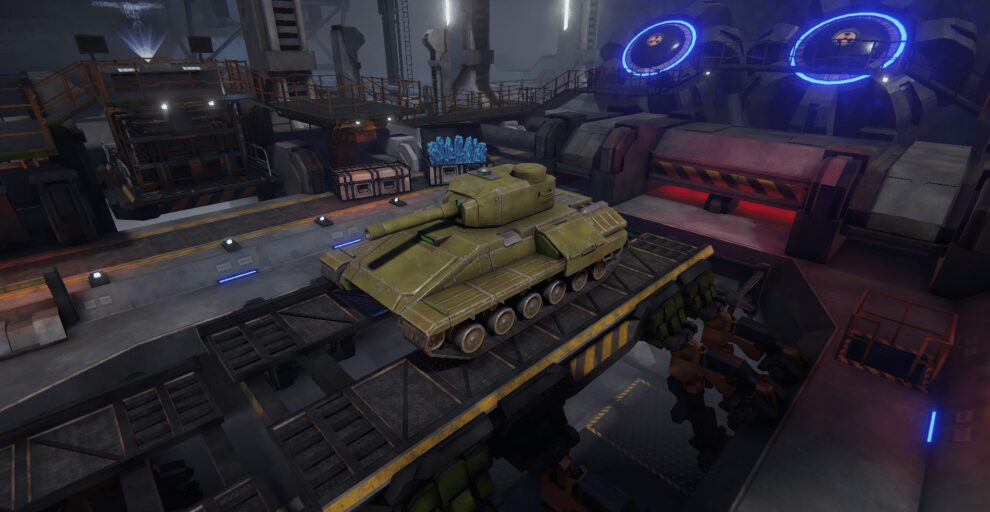
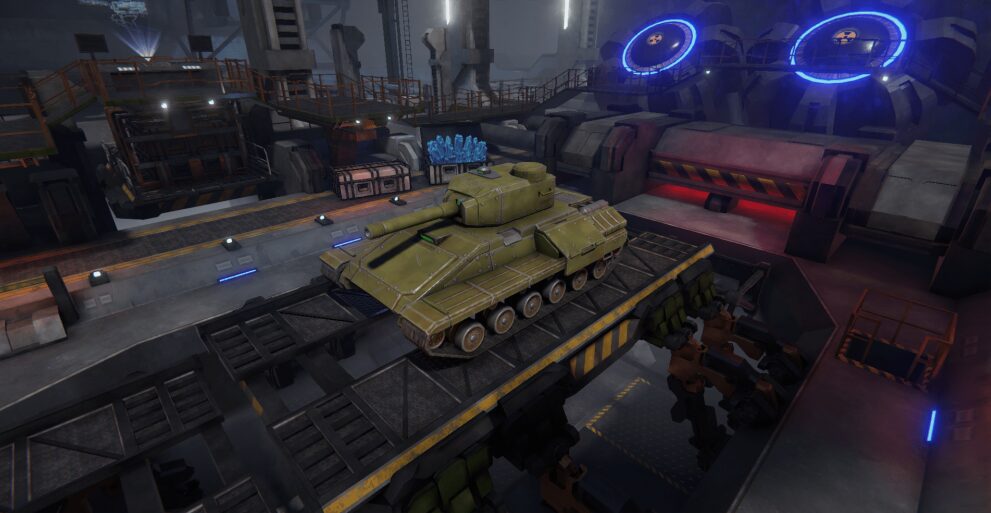
Off, on
CONTROLS
In the control settings you can:
- Invert controls when reversing: when ticked, A turns you right and D left while you drive backwards;
- Enable mouse controls in battles;
- Invert vertical mouse controls;
- set the Mouse sensitivity (for comfortable play we suggest 20 to 50 percent of the scale);
- change the Keys assignment: click the action, then press the key you want for it.
SOUND
In the sound settings you set the volume of:
- Sound Effects
- Music
- Interface Sounds
While you move a slider you hear the volume and can find the one you like.
LANGUAGE
Choose one of the game's 11 languages. The game will automatically restart after you apply the language change.